Xcode iPhone
Watch a build finish from the couch.
Share just the Xcode window to your phone. Follow the progress live and know the moment it succeeds.
- Live video
- Local Wi‑Fi
 Remote Window
Get the app
Private window sharing for Mac
Share a single Mac window with any phone, tablet or browser — live video, app sound and touch control. Your viewer just opens a link.
Use cases
Scroll through six everyday moments. Each window passes through the hypercube to a different screen.
Xcode iPhone
Share just the Xcode window to your phone. Follow the progress live and know the moment it succeeds.
Keynote TV
Put your slides on any screen with a browser. Notifications and other windows never leave your Mac.
Music iPhone
Hear the app’s sound on your phone and tap to skip a track. The Mac follows.
Figma iPad
Send a private link. They pinch to zoom on their iPad, and the zoom happens on your Mac.
Safari a teammate’s laptop
Nobody joins until you click Approve. Allow control, or keep it view only.
Notes iPhone on 5G
Type into the shared window from your phone, over cellular. Keep the link open for an hour, or until you end it.
How it works
This is the Remote Window app. Try it right here.
Remote Window
Choose a window to share.
 Allow this connection?
For your viewer
No app, no account. Tap Connect to Mac, approve it on the Mac, then tap, scroll and type.
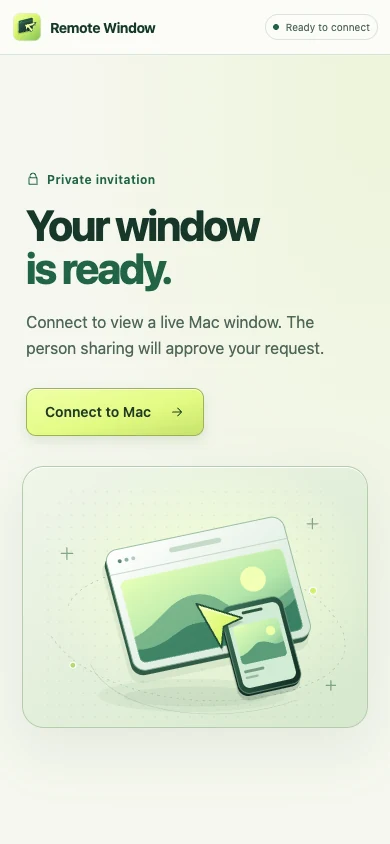
Waiting for Mac owner approval…
Remote Window
Connected
Tap to clickTwo fingers ↑↓ to scrollSpread to zoom
Remote Window
Idle
Features
Remote Window never captures your whole screen. Notifications, the menu bar and every other window stay private.
Nobody joins until you say yes, with control or view only.
Links stay open for 1 to 24 hours, or until you end sharing.
Optionally share the app’s sound. Never your microphone.
Tap, scroll, pinch and type, or switch to a trackpad for precise clicks.
Share across the world or keep it on your network. Video and control are encrypted end to end, and the server never sees your screen.
Get started
Preview 1.3.0 · The preview build is signed for local testing.
Questions
No. They open the link or scan the QR code in Safari or any modern browser.
No. Remote Window captures only the window you pick and never switches to full‑screen capture.
You choose 1, 2, 3, 5 or 24 hours, or until you end it. While it’s open, the same link can let a viewer back in, and you approve each time.
Yes. Choose Internet to share over cellular or another network, or Local Wi‑Fi to keep it on yours.